Showing posts with label Linux. Show all posts

Saturday, January 09, 2016

Graceful shutdown for the Raspberry Pi

The Raspberry Pi is a great little board, but because it runs Linux, you risk corrupting the file system on the SD card if you simply switch off the power. The standard advice is to type "sudo shutdown -h now" and wait until the shutdown process has finished, or has at least unmounted all the file systems, before switching off the power.

What if the RPi is part of some embedded widget with no keyboard and screen? How then to initiate a shutdown, and how to know when it's finished? It was while contemplating the creation of just such an embedded widget that I hit upon this piece of brilliance. First, build this circuit.


How does this work? When you plug in the wall wart, we don't want to draw power from the 9 volt battery yet, so we want Q1 to be off. This is accomplished by using Q4 to keep the Q2/Q3 Darlington turned off. The wall wart power flows thru the three diodes in parallel and operates the switching voltage regulator (I picked up a bunch of these from some Chinese outfit on eBay). Meanwhile C1 charges to around 9 volts.

What happens when you yank the wall wart? Why, magic of course. Magic happens. Specifically, Q4 turns off, and C1 begins to discharge thru R1 and R6, turning on the Darlington pair, which turns on Q1 so that now the switching regulator is running on battery power. The battery power remains on for some multiple of the RC time constant (100 uF * 500K = 50 secs), and you end up with about two minutes to get the Raspberry Pi to shutdown.

I've started a Github repository for this, and it includes the two scripts that make graceful shutdown a service that starts automatically when the RPi boots.

Tuesday, April 15, 2014

A few decades' progress in computers and electronics

I got my bachelors degree in EE in 1981 and went to work doing board-level design. Most circuit assembly was wire-wrap back then, and we had TTL and CMOS and 8-bit microcontrollers. Most of the part numbers I remember from my early career are still available at places like Digikey. The job of programming the microcontroller or microprocessor on a board frequently fell to the hardware designer. In some ways it was a wonderful time to be an engineer. Systems were trivially simple by modern standards, but they were mysterious to most people so you felt like a genius to be involved with them at all.

After about 15 years of hardware engineering with bits of software development on an as-needed basis, I moved into software engineering. The change was challenging but I intuited that the years to come would see huge innovation in software engineering, and I wanted to be there to see it.

Around that time, the web was a pretty recent phenomenon. People were learning to write static HTML pages and CGI scripts in Perl. One of my big hobby projects around that time was a Java applet. Some people talked about CGI scripts that talked to databases. When you wanted to search the web, you used Alta Vista. At one point I purchased a thick book of the websites known to exist at the time, I kid you not. Since many websites were run by individuals as hobbies, the typical lifespan of any given website was short.

Software development in the 80s and 90s was pretty hit-or-miss. Development schedules were almost completely unpredictable. Bugs were hard to diagnose. The worst bugs were the intermittent ones, things that usually worked but still failed often enough to be unacceptable. Reproducing bugs was tedious, and more than once I remember setting up logging systems to collect data about a failure that occurred during an overnight run. Some of the most annoying bugs involved race conditions and other concurrency issues.

Things are very different now. I've been fortunate to see an insane amount of improvement. These improvements are not accidents or mysteries. They are the results of hard work by thousands of engineers over many years. With several years of hindsight, I can detail with some confidence what we're doing right today that we did wrong in the past.

One simple thing is that we have an enormous body of open source code to draw upon, kernels and web servers and compilers and languages and applications for all kinds of tasks. These can be studied by students everywhere, and anybody can review and improve the code, and with rare exceptions they can be freely used by businesses. Vast new areas of territory open up every few years and are turned to profitable development.

In terms of concurrent programming, we've accumulated a huge amount of wisdom and experience. We know now what patterns work and what patterns fail, and when I forget, I can do a search on Stackoverflow or Google to remind myself. And we now embed that experience into the design of our languages, for instance, message queues as inter-thread communication in JavaScript.

Testing and QA is an area of huge progress over the last 20 years. Ad hoc random manual tests, usually written as an afterthought by the developer, were the norm when I began my career, and many managers frowned upon "excessive" testing that we would now consider barely adequate. Now we have solid widespread expertise about how to write and manage bug reports and organize workflows to resolve them. We have test-driven development and test automation and unit testing and continuous integration. If I check in bad code today, I break the build, suffer a bit of public humiliation, and fix it quickly so my co-workers can get on with their work.

I miss the simplicity of the past, and the feeling of membership in a priesthood, but it's still better to work in a field that can have a real positive impact on human life. In today's work environment that impact is enormously more feasible.

Thursday, November 08, 2012

Node.JS on the Raspberry Pi

Most of this procedure is taken from a posting on Github by Sander Tolsma. His post is a little bit old and some of the steps he included can be skipped because the versions of things have become better synchronized. So very briefly, here is what to do, assuming you've successfully booted into Raspbian.

$ sudo apt-get install git-core build-essential
$ # IIRC, build-essential is already present on Raspbian
$ git clone https://github.com/joyent/node.git
$ cd node
$ git checkout v0.8.14-release
$ #             ^^^^^^ update to most recent stable version
$ ./configure
$ make        # this takes a while
$ sudo make install

Voila, you're done. Type "node" at the Linux prompt and you'll get Node's ">" prompt. Then you can type in JavaScript and watch it run interactively, or you can create a file of JavaScript and run it.

pi@raspberrypi ~ $ cat > foo.js
for (var i = 0; i < 3; i++)
  console.log(i);
^D
pi@raspberrypi ~ $ node foo.js
0
1
2

I'd like to import events from hardware so that they can take handlers, just like DOM event handlers running on a browser. One approach would be to run an HTTP server in Node and set up endpoints for the events I want to handle. That sounds like quite a bit of overhead for hardware events.

Alternatively, I could do what looks like the right thing, involving eventfd and its cohorts. I need to dig into the Node source code to see how to do that, and do more research in general.

Friday, October 26, 2012

NodeJS and JSHint on Fedora

Yesterday I blogged that it's a hassle to install these on Fedora. Apparently I was suffering from brain fog. It's not so bad once you do enough research and stumble across the right advice online.

First, if you're a bonehead and you've made a mess trying unsuccessfully to install v8/nodejs/npm/jshint eight or ten times already, clean things up:

sudo yum -y remove v8

The repository for picking up nodejs, npm, and v8 is http://nodejs.tchol.org/ which you can enable on your system as follows:

sudo yum localinstall --nogpgcheck \
  http://nodejs.tchol.org/repocfg/fedora/nodejs-stable-release.noarch.rpm

You want to avoid installing the wrong version of the V8 Javascript engine, so edit /etc/yum.repos.d/fedora-updates.repo and add the line

exclude=v8*

to the "[updates]" section.

Now you're ready to install everything:

sudo yum install npm
sudo npm install jshint -g

Thursday, October 25, 2012

Setting up Ubuntu 12.04

My Linux distribution of preference is Ubuntu. Debian did a nice job on the package manger and Canonical did a nice job making it user-friendly. But some things in 12.04 desktop version, I don't need, like the Unity interface. So here's what I like to do to make 12.04 a little friendlier. This is particularly worthwhile when running in VirtualBox, a necessity because my employer is a Fedora shop, and it's a big hassle to run Node.js on Fedora, which I need to run JSHint to sanity-check our Javascript code.

I'm starting with a 40 gig disk image and for networking, a bridged adapter, so that when I run the server on the Ubuntu instance it will be accessible on the rest of the subnet. So first let's get rid of that silly Unity interface. Open a terminal window and run:

$ sudo apt-get install gnome-panel

Close the terminal window and log out. On the login screen, to the right of your name, you'll see a circular logo. Click on that to get a menu and select "GNOME Classic". Type in your password, and notice your blood pressure gently lowering as the familiar old Ubuntu desktop appears before you.

Assuming you're on a virtual machine, you'll really want to stop the screen locking up and requiring your password. So click on the gear in the upper right and select "System Settings", then select "Brightness and Lock". Toggle the "Lock" switch to "OFF" and uncheck the box "Require my password when waking from suspend". Dismiss that window.

Now install Node.js, JSHint, and a few other conveniences.

$ sudo su -
# apt-get install python-software-properties
# add-apt-repository ppa:chris-lea/node.js
# # You'll need to hit the Enter key to continue...
# apt-get update
# apt-get install nodejs npm
# npm install jshint -g
# apt-get install vim git gitk emacs subversion meld
# apt-get install apache2 mysql-server mysql-client pphp5 libapache2-mod-php5
# ^D
$

I like to package up my .ssh directory into a tarball and bring it to new machines when I set them up. Having stored my id_dsa.pub key in the .ssh/authorized_keys file on the Subversion server, I don't get constantly bothered to supply a password for every Subversion operation.

By all means set up a shared folder with your host machine. I map the host machine's /home/wware directory to a directory in /media. I need to be root to access it but it's still the easiest way to move things back and forth.

Friday, September 28, 2012

Fun with the Raspberry Pi

If you've heard about the Raspberry Pi, (wikipedia, elinux.org) a $35 single-board Linux computer, you probably won't learn much new here. The main point of this post is that I got mine to boot, so I do have one or two small bits of advice to pass on to those working toward that goal. First, photographic evidence (veracity: if I were faking it I wouldn't put a big reflected flash in the middle of the screen).

Here's the board booting. Booting (and everything else) is a little slower on the Raspberry Pi than you're probably accustomed to. But then, hey, it's $35, and you can stuff it into whatever piece of hardware you're building and have full-blown Linux with X Windows. So live with it.

My experience has been that at least in the near future, it's not really $35. Here's what happens: the Raspberry Pi folks build a bunch of boards and sell them for $35, but they get picked up by people who want to resell them, so you end up getting yours on eBay for somewhere in the $55 to $70 range. Eventually this mischief will end and the price will stabilize.

 Photographic evidence number two: the board has booted into X Windows. This is using the recommended-for-beginners Debian-based distribution, 2012-09-18-wheezy-raspbian.zip, which unpacks into 2012-09-18-wheezy-raspbian.img, and obviously the date in that name will be updated periodically.

So here are the tips for fellow beginners:
  • First, remember this board is designed for complete novices, and even, heaven help us, artists. Do not despair, you ARE smart enough to get it working.
  • The Raspberry Pi folks warn you away from micro-SD cards, but the one I'm using works fine.
  • You may find that your keyboard is mapped in a funny way. My (@) key and (") key were swapped, and the (#) key was mapped to a British pound sign (£). One solution to this appears here. Mine was to create the file /home/pi/.xsessionrc which contained this line:
setkbmap us -option grp:ctrl_shift_toggle

A better approach to the keyboard issue is one of the options in raspi-config (the first thing that appears on your screen after all those boot messages finish). Look for "keyboard configuration" and select the canonical U.S. keyboard choices.

Everything else seems to be working, but I haven't tried to do much yet. I have no idea how to talk to GPIOs or other peripherals yet, but I've done that with other Linux boards and expect that my past experience will get me there pretty painlessly. That, and there is a HUGE community for this thing.

Looking forward to checking out Adafruit's WebIDE when time permits. The development system runs as a web server on the board, and you develop in the browser on your laptop over a network connection.


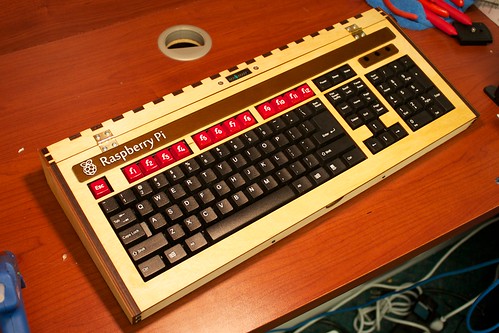
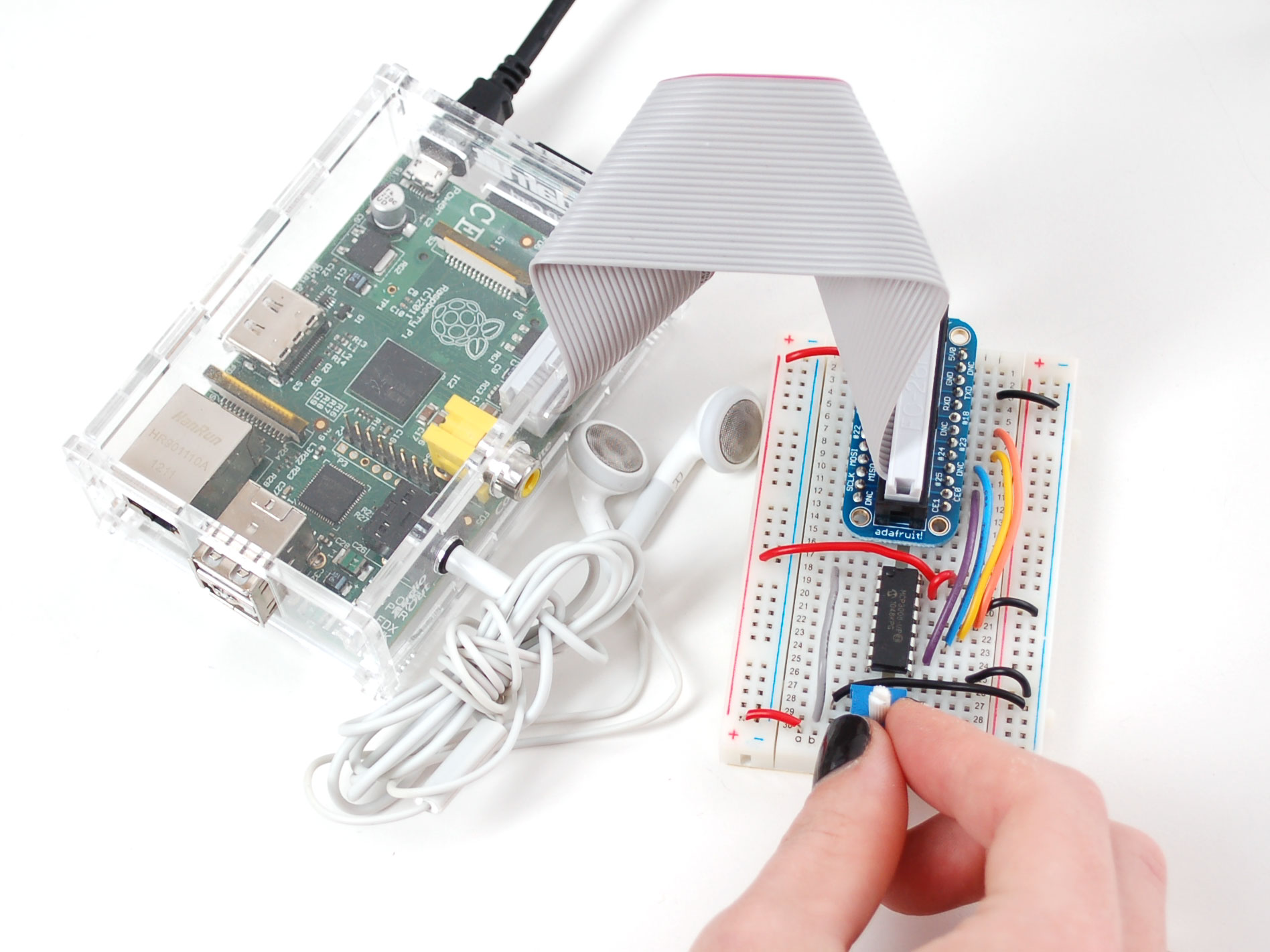
And now for your viewing pleasure, assorted Raspberry Pi pr0n:
 

Friday, May 06, 2011

Beagleboard, OMAP, and Angstrom

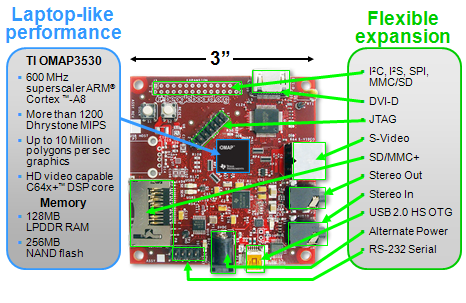
I've been doing a lot lately at work with the BeagleBoard, shown at right. It uses an OMAP processor from Texas Instruments. The OMAP family is ARM-based and includes a DSP core, along with an intimidatingly rich set of on-chip peripherals. The OMAP is built with a package-on-package arrangement so that the RAM die sits right on top of the processor die.

The board typically costs about $150 in the United States. You'll need a few things to work with it: an SD card, a USB adapter to write the SD card, a USB-to-serial adapter to communicate with the board, a 5-volt power supply, and later (maybe sooner) you'll want a USB hub with a RJ-45 ethernet jack.

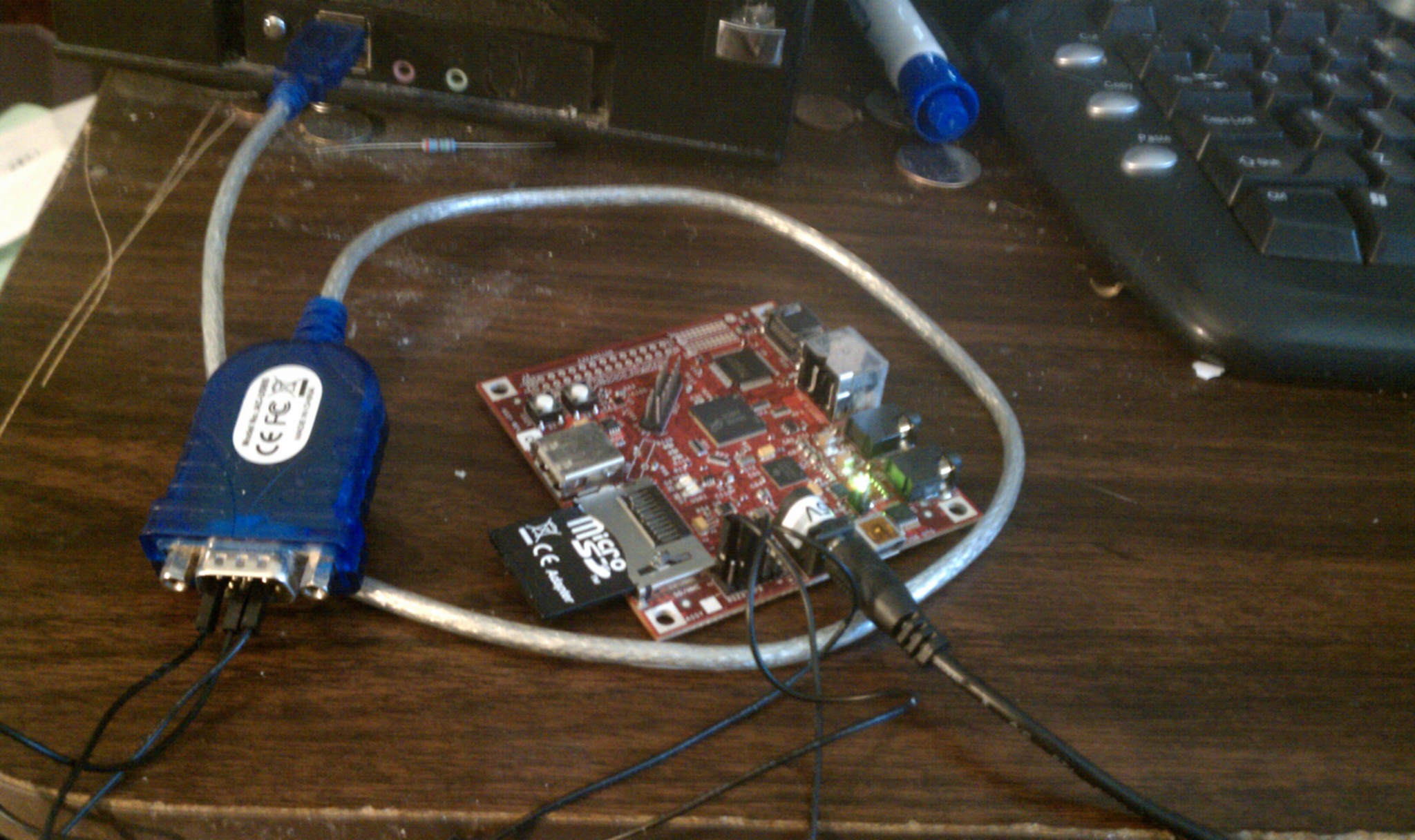
A minimal setup is shown at right. This is just enough to connect to the board over a serial port (115.2 kbaud, 8N1, no flow control) and verify that you get a working Linux shell. The Angstrom Linux distribution has a bit of a learning curve but it seems well thought out.

I'm thinking of trying Angstrom on one of the AT91SAM7S boards from Sparkfun when I get a little spare time. I think that would work, and it would really rock to see full-blown Linux running on a $36 board. I don't know how I'd handle networking in that kind of situation, though.

Update: I am reminded that the SAM7S lacks an MMU so it can't run Angstrom. There is a different Linux distribution called uCLinux (see uclinux.org) that would work, maybe I'll try that some day.

Tuesday, December 21, 2010

Developing for the AT91SAM7 microcontroller

I once purchased a SAM7 P256 board from Sparkfun for $72. This post is a bunch of pointers to the resources I’ll need to develop for it. The same code will work on the H64 header board (only $35), which can be used in future USB projects. UPDATE: Sparkfun no longer sells the H64 header board, but they have a H256 board for $45.

This post assumes an Ubuntu Linux environment.
Set up the development environment.
Use Sam_I_Am to access the SAM-BA bootloader.
Some easily available demos and example programs
Other resources

Saturday, November 06, 2010

Remastering Ubuntu Mini Remix

Ubuntu Mini Remix is a very small, very efficient Ubuntu distribution created by Fabrizio Balliano. I discovered it when I needed to create a kiosk-like boot disk image that booted the user directly into a simple command-line application. I didn't need X Windows, OpenOffice, web access, or email, I just needed to run my application, and UMR was perfect for that. The baseline UMR image is about 165 MB, and is available for i386 and for amd64.

In my previous blog post, I explained how to create a debian package. Since then I've written a shell script that takes one or more debian packages and uses them to remaster UMR. If you wanted to use the debian package from the last blog post to update UMR, you could simply type:
(cd ../make-debian-pkg/; make)
./customize.sh \
    ../make-debian-pkg/foo-bar_1.0_i386.deb
If you have multiple debian packages to be included, simply add them as additional command line arguments. The result will be a file called "customized-umr-10.10-i386.iso", located in your home directory.

For very small additions, a package may be overkill. It might make better sense to edit the script to simply add the files you need, and in my situation at work, that was the approach I ultimately chose. But if your change is more substantial, and especially if you want to include other packages that you'll rely upon, you'll want to think about using package management.

If you want your boot image to take the user directly into your application as I did, you can go into the chroot jail and replace the file /etc/skel/.bashrc with a short script that calls your application. The command would look like this:
sudo cp my-bashrc ${CHROOT_JAIL}/etc/skel/.bashrc
and you'd want to put that with the lines where the comment says "Prepare to chroot", near line 63. (Take the line number with a grain of salt as I may end up editing it at some point.)

Tuesday, November 02, 2010

Making a debian release package

I've been doing a lot with Ubuntu Linux lately, and decided it was time to find out how to put together a debian package. Ubuntu shares Debian's package management system, having descended from Debian. I've banged my way through the code so you don't have to. Here I will just discuss a few highlights. There isn't that much to it. Since this is just an example, I didn't get very creative with the name or the contents. Running make will build foo-bar_1.0_i386.deb.

First a quick look at the files.
./Makefile
./control
./copyright
./postinst
./prerm
./usr/bin/say-hello
./usr/lib/python2.6/foobar.py
./usr/share/doc/foo-bar/foobar.txt
The three files in the "usr" directory tree will be copied into the target system when you say "dpkg -i foo-bar_1.0_i386.deb". If you then say "dpkg -r foo-bar", those three files will be removed. The postinst and prerm scripts can be used to perform actions after installation and before removal respectively, but here they just print messages to the console. The real meat is in the two files control and Makefile. control specifies the package name, version number, dependencies, and other information. Makefile takes pieces of that information to build makefile variables that will be used in creating the package. There isn't a heck of a lot to say about the process other than there is a special DEBIAN directory with meta-information about the package and how it should be installed and removed.

This is the minimal possible example. You can build a deb file this way and install it on an Ubuntu machine. But there are a lot of things that could be improved and cleaned up, and put in better compliance with common practices for making these packages more maintainable. The two big areas are (1) there are recommendations about additional fields to go into control, and (2) there is a tool called lintian, a sort of lint command for deb packages, whose advice should be applied. When I build this package, the advice I get is the following:
E: foo-bar: changelog-file-missing-in-native-package
W: foo-bar: third-party-package-in-python-dir usr/lib/python2.6/foobar.py
W: foo-bar: binary-without-manpage usr/bin/say-hello
W: foo-bar: maintainer-script-ignores-errors postinst
W: foo-bar: maintainer-script-ignores-errors prerm
where "E" and "W" are "Error" and "Warning". So that's not too bad.

Thursday, October 28, 2010

Customized Ubuntu distributions part three

Apparently most of the stuff in my previous posting was the wrong approach. I think I've finally got what I want. All this time, I've been trying to figure out how to do a live Linux CD that (a) includes some code we've been developing at work, and (b) boots very quickly and simply to where the user can use that code. The goal is to provide software tools to a partner company where everybody's laptop runs Windows, but all our stuff is written in Linux.

First I tried to build our code in Cygwin using the Windows version of libusb. I found that fraught with complexities of all sorts and eventually decided the Live CD approach sounded a lot easier. Besides, we wanted the Live CD/bootable USB stick anyway for some later plans.

Theoretically there are small Linux distributions (the most famous being Damn Small Linux) that can be used for this sort of thing. As soon as I started getting into that, I found that DSL is no longer maintained, the documentation for it is insufficient and the pieces that do exist contradict one another. I struggled to resolve dependency and version issues in porting our code to DSL and finally gave up. By that time, I had already discovered how to make an Ubuntu Live CD, and so I delivered one with the first piece of our code to our partner.

But I really wanted a much shorter boot time. I don't need X Windows or networking or OpenOffice or a web browser. I'd prefer to have a development environment on there in case the code required modification but even that is unnecessary.

In the past several days I've tinkered with about a dozen Linux distributions claiming to be "small" and found them all deficient in one way or another. I've tried dozens and dozens of permutations of dumb little tricks involving VirtualBox and QEMU and Ubuntu Customization Kit and burning CD-Rs and USB sticks. I've looked at what feels like hundreds of different web pages and blog postings, each claiming to have an authoritative and trustworthy solution to my problem. Each involves failures to account for discrepancies between versions, or the document I've found is old and inapplicable to what I'm doing, or the author made several minor assumptions that don't work in my environment.

Currently I'm looking at something called Ununtu Mini Remix which looks promising. It's looking very good so far, as I am remastering it with the information on the Ubuntu help website. Adding a shell script to /bin to make sure I can, and adding an "echo HELLO" to /etc/skel/.bashrc to make sure it appears when the disk boots into a bash session.

Everything was going great and then mksquashfs got hung up on the proc directory -- AH, this happened because when you finish a chroot session you must do three umounts (dev/pts, proc, sys) even if you weren't aware of having mounted them. Apparently chroot mounts them without telling you. Umount those in the chroot environment, exit, then umount edit/dev, and the mksquashfs goes just dandy.

So my two dumb tricks in /bin and /etc/skel/.bashrc worked like a champ in VirtualBox and now I'm going to try to make a bootable USB stick. Ubuntu's Startup Disk Creator likes the file (it's very picky about what ISO files are considered bootable) and the USB stick works great in my Windows laptop. Now we make the Angry Birds WHEEEE noise, however dumb some people might find the game. The next step is to make my tweaks into a Deb file using this HOWTO so they go in painlessly.

Grazie mille to Fabrizio Balliano for creating Ubuntu Mini Remix.


165MB Ubuntu livecd containing only the minimal Ubuntu package set. Wonderful as a rescue disk or as a base for Ubuntu derivative creation.

Saturday, October 23, 2010

Customized Ubuntu distributions part two

Turns out I was mostly still spinning my wheels here -- move on to part three of this tale for the solution to the problem.

After a brief visit to the world of Damn Small Linux and subsequent narrow escape from eternal damnation, I returned to Ubuntu with the idea of reducing the size (not as big a priority as I initially thought), speeding up the boot time, and running a program when the user logs into X.

First a quick note about the 9.10/10.04 UCK thing. What's working well for me is to run UCK on a box that has 10.04 installed, and apply it to a 9.10 ISO. Do not attempt to run UCK inside a VMware instance, it's just a lot of pain. You can run the resulting ISO in QEMU but don't forget the "-boot d" argument.

To shrink the distro, I removed OpenOffice, Ubuntu Docs, and Evolution. Things I added included autoconf, emacs, git, guile, and openssh-server.

The low-hanging fruit for speeding up boot time is to bring up networking as a background process, described here. Doing this in Ubuntu 9.10 means editing /etc/init.d/networking, adding "&" here:
case "$1" in
start)
        /lib/init/upstart-job networking start &
        ;;
People have given a lot of thought to other approaches to speed up Ubuntu's boot time, and maybe I'll blog more about that as I investigate it further. I really need to dig deeper into the boot time topic. It will likely warrant another blog post.

Having an app start immediately when the user logs in is somewhat interesting. The X session startup stuff is all in /etc/X11/Xsession.d/ and the main thing here is /etc/X11/Xsession.d/40x11-common_xsessionrc where we find a call to the user's ".xsessionrc" file. The user's directory is populated from /etc/skel, so the trick here is to create /etc/skel/.xsessionrc:
export LC_ALL=C
${HOME}/hello.sh &
where hello.sh is a sample shell script just to make sure I've got the principle down pat:
#!/bin/sh
sleep 2   # wait for other xinit stuff to finish
xterm -geometry 120x50+0+0 -e "echo HELLO WORLD; sleep 5"

Hmm... that worked for a bit, then stopped working. I've since discovered another file, /etc/gdm/PreSession/Default, which seems more relevant. But that starts the app just a little too early, before the user is actually logged into the X session, so maybe I should put a time delay in my app? Annoying.

Monday, October 18, 2010

Fun with customized Ubuntu distributions

At work we have an interesting problem. We are working with some companies in Taiwan. Obviously there's a language difference, but there is another difference as well. We are an Ubuntu Linux shop, and they all have Windows laptops. Periodically we have bits of test code that they need to use, and the OS gulf needs to be overcome.

My first whack at this issue was to try to use Cygwin to rebuild our tools from source on a Windows platform. But after I'd spent a few days dealing with libusb, and making not a whole lot of progress, a co-worker suggested a bootable USB stick. The Taiwanese folks get to keep their Windows laptops, but with a quick reboot they can temporarily use Linux machines just like ours. So I set about learning the art of bootable USB sticks, which in Ubuntu 9.10 is pretty painless. (This is not the case with Ubuntu 10.04. If you need to do this, stick with 9.10.)

Not to keep you in suspense, the two magical things are
  • Ubuntu Customization Kit, (sudo apt-get install uck) which produces an ISO file suitable for burning a CD or DVD which you can boot from, and
  • USB Startup Disk Creator (already present in your System>Administration menu) which puts that ISO file onto a USB stick and makes the stick bootable.
These are amazingly easy-to-use tools, given the complexity of what they're doing. In the bad old days, the Knoppix distribution existed solely for the purpose of rendering this feat possible for mortals. That said, I learned a few tricks about these things which I'll pass along here. Do NOT use Ubuntu 10.04, as there is a serious bug in that version of UCK plus a handful of annoying behavioral oddities. These are fixed in a future UCK release, but that's not available in the Ubuntu 10.04 repositories. In order to produce a USB stick which could be used with a Windows laptop to produce another bootable USB stick, I put a copy of the ISO file onto the USB stick. The instructions for copying the USB stick then go like this.
  • Boot into Windows and insert the first USB stick. Copy the ISO file somewhere memorable. Restart the laptop.
  • Boot into Ubuntu using the USB stick. Once you're booted, insert the second USB stick.
  • Bring up USB Startup Disk Creator. The original ISO file on the first USB stick (from which you are now running) will not be visible in the file system. But the Windows hard drive will be readable, so dig around in it to find the ISO file copy you just used. Use that as the source, and select the 2nd USB stick as the destination. Push the button.
  • Once that installation is complete, copy the ISO file from the Windows hard drive onto the second USB stick. Voila, a copy.
Using the first part (making an ISO image) I was able to produce a DVD with some of our tools for the Taiwanese folks to use. I set up Traditional Chinese and English as languages, with the default to boot into Traditional Chinese. But then because it had some of our source code, I encrypted this entire 725 MB file, which is ironic given that Ubuntu is open source. But there had to be a way to encrypt only the proprietary stuff.

On the next boot image I send them (which will be a USB stick, not a DVD, since USB sticks are oh so much sexier), the contents of the stick will be open source, and the proprietary stuff will be pulled down from a little tarball on some handy little server. The thing that pulls down the tarball and handles security is my little tarball runner script. The new ISO is at http://willware.net/tbr-disk.iso, and if you need to share some closed-source Linux code with people in China or Taiwan, feel free to use it.

To use this bit of cleverness, build some code on your Linux box, package it up as a tarball (including a run.sh shell script at the root level, in case you need to do installation stuff), and if necessary, encrypt it using (my tweaked version of) the Twofish algorithm found on Sourceforge. Then post it to the Internet and email the password only to your intended recipients.

If I find the time and energy, I'll package up the tarball runner and the Twofish module as a Deb package to make the installation painless.